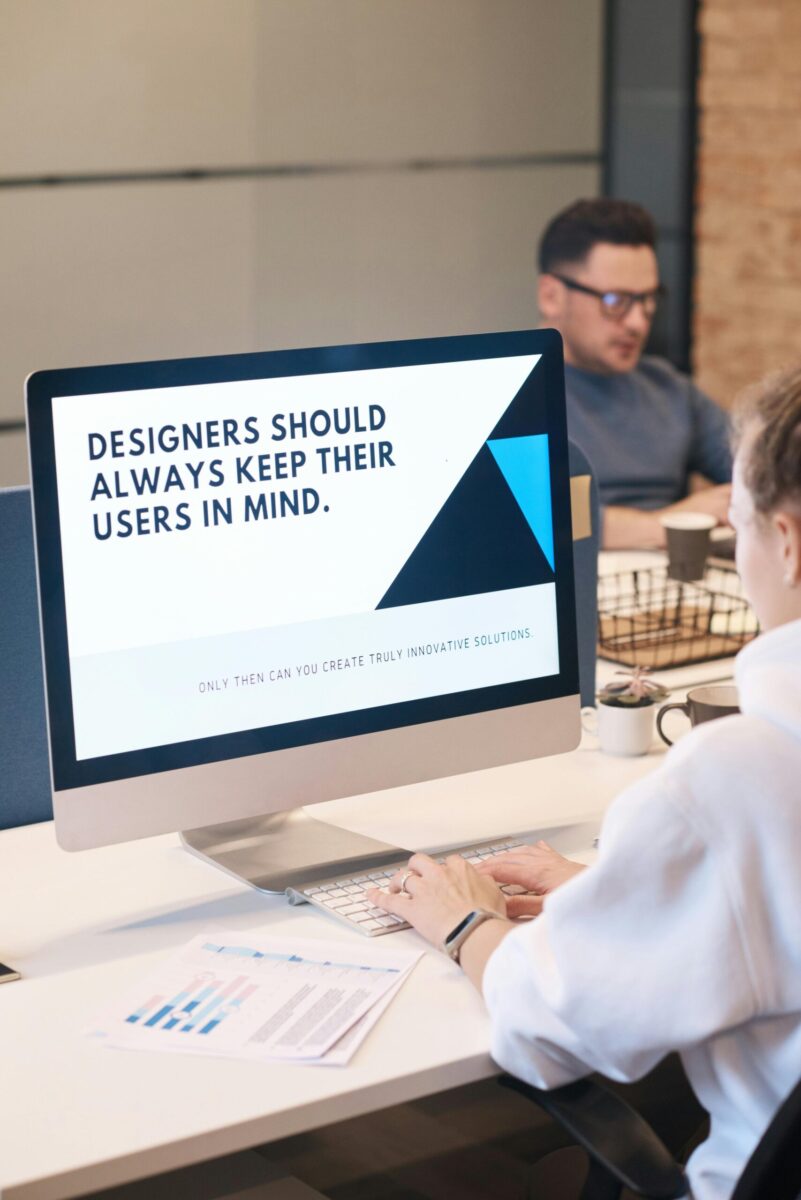
When you’re new to UX, it’s easy to get lost in tools and trends. What actually moves the needle is mastering a handful of timeless ideas. These are the 7 UX design principles every beginner needs to know, practical, battle-tested, and relevant whether you’re shaping a mobile app, a SaaS dashboard, or a simple marketing site. You’ll learn how to think like your users, create cleaner interfaces, and validate your choices without guesswork. Keep these principles close and your designs will feel more obvious, more helpful, and frankly, more like something people want to use.
User-Centered Design
Everything starts here. User-centered design means you prioritize real people, their goals, constraints, and context, over your preferences or internal assumptions. Instead of asking “What can we build?” you ask “What problem are users trying to solve, and what’s the least complicated way to help them solve it?”
Begin with quick discovery work. Talk to 3–5 representative users, even informally. Listen for tasks, not opinions. What triggers them to use your product? Where do they get stuck? Map a simple journey: trigger → action → result → follow-up. You’ll spot friction you can actually remove.
Personas and jobs-to-be-done are helpful only if they’re lean and living. Keep a one-page summary that answers: who’s the user, what are they trying to get done, what does “done” look like, and what constraints matter (time, device, environment)? When you design flows, hold those answers next to your screen and ask: does this step move the user closer to “done” with less effort? If not, trim it.
The payoff: your interface stops being a gallery of features and becomes a clear path to outcomes users care about.
Clarity And Simplicity
Clarity beats cleverness. If someone has to think hard to interpret a label, the design isn’t done yet. Use plain language, “Create account,” not “Begin your journey.” Reduce cognitive load by removing anything that doesn’t support the task on the screen. Empty space isn’t waste: it’s breathing room for decisions.
Keep actions singular. Each screen should make one primary action obvious and one or two secondary actions available but quiet. If you’re listing features, collapse the long tail behind “Show more” and reveal on demand. That’s progressive disclosure in practice.
Microcopy is your invisible superpower: a short helper line beneath a form field can cut errors in half. Replace generic “Error” with “Password needs at least 8 characters and a number.” Replace “Submit” with a verb that confirms the outcome, like “Send invoice” or “Save changes.”
When in doubt, run the 5-second test: show someone the screen for five seconds, hide it, and ask what they can do there. If they hesitate or guess wrong, simplify.
Consistency And Standards
Users carry expectations from other products. Jakob’s Law says they spend most of their time in other interfaces, so they expect yours to work like those. Lean into standards where they help. A gear icon still means settings. Underlines still imply links. Don’t make people relearn basics just to be unique.
Internally, consistency compounds. Create a lightweight design system early, colors, type scales, spacing, buttons, form elements, and basic interactions. Use a 4 or 8px spacing grid to avoid fuzzy, almost-right gaps that make UIs feel off. Name components clearly and reuse them: future you will be grateful.
Platform conventions matter. iOS, Android, and the web have different patterns for navigation, gestures, and system dialogs. Respect those norms unless you have a compelling reason not to, and if you break a pattern, provide extra signposting and feedback so users aren’t left guessing.
Consistency isn’t sameness: it’s predictability. You can be expressive with visuals, but behaviors and terminology should be stable across screens and states.
Hierarchy And Scannability
People don’t read interfaces: they scan. Your job is to guide the eye from what’s most important to what’s next. Start with a clear visual hierarchy built from size, weight, color, spacing, and placement. Make the primary action pop, secondary actions accessible, and tertiary details quiet.
Use meaningful headings and short subtext to chunk information. A consistent typographic scale, say H1, H2, H3, body, caption, gives you rhythm. Keep paragraphs short, use line lengths around 60–80 characters, and break up dense content with dividers or subtle background panels.
Think in patterns users already use: F-pattern for text-heavy layouts, Z-pattern for simple landing pages. On mobile, put primary actions within easy thumb reach, and don’t bury critical controls behind multiple gestures. If something is important, it deserves persistent visibility, not a hidden overflow menu.
Hierarchy also applies to flows. Reduce steps for core tasks, surface critical info first, and show progress when a process spans multiple screens. The best compliment you can get is, “I knew exactly what to do.”
Feedback And Affordance
Interfaces should feel alive. When a user taps a button, it should look pressed and do something visible or audible. That’s feedback, the system acknowledging an action. Affordance is the cue that an element is interactive at all: buttons look pressable, links look clickable, inputs look editable.
Design obvious signifiers. Buttons need contrast, shape, and label clarity. Links should be styled consistently and not masquerade as plain text. Inputs should show focus states and offer helpful defaults or placeholders (but never use a placeholder instead of a label).
Handle states thoughtfully: loading, success, error, empty, and disabled. Skeleton screens or progress indicators reassure users something is happening. Confirmations prevent double work (“Invoice sent”). Helpful errors tell users how to fix the issue, not just that something broke. Empty states are a chance to teach: show an example or a quick-start tip instead of a blank void.
Microinteractions, the tiny animations and haptics, should be quick and purposeful. A subtle bounce is delightful: a two-second flourish between every tap is infuriating. When in doubt, optimize for speed and clarity.
Accessibility And Inclusion
Accessible design isn’t extra: it’s core quality. You’re designing for real people with real constraints, permanent, temporary, or situational. Good accessibility often improves usability for everyone.
Start with color contrast. Aim for at least WCAG AA: roughly 4.5:1 for body text and 3:1 for larger text. Don’t rely on color alone to convey meaning: pair color with icons, labels, or patterns. Ensure focus states are visible for keyboard users and that every interactive element is reachable via tab order in a logical sequence.
Provide alt text for meaningful images, captions or transcripts for audio and video, and descriptive labels for form controls. Avoid using placeholder text as a label: labels should persist so users don’t forget what a field requires. If you include motion or parallax, honor reduced motion preferences.
Language matters. Write concise, plain labels and instructions. Don’t gate tasks behind complex gestures or tiny hit targets, make tap areas at least around 44x44px. Test with a screen reader and with a keyboard only. If you can complete core tasks comfortably that way, you’re on the right track.
Iteration And Usability Testing
You won’t nail it on the first try, and you don’t need to. Iteration and usability testing turn guesses into informed decisions. Prototype quickly at the right fidelity for the question you’re asking: low-fi to explore structure and flows, mid-fi for layout and copy, high-fi when you need to test look-and-feel or microinteractions.
Run small, frequent tests. Five users can reveal the majority of critical issues early. Keep tasks realistic and measure success: time on task, completion rate, and error rate. Watch where users hesitate, where they backtrack, and what they say under their breath. Those small moments point to big fixes.
Pair qualitative insights with lightweight analytics. Funnels show drop-offs, heatmaps hint at attention, and A/B tests validate high-impact changes. Always write a simple hypothesis before shipping: “If we clarify the primary button label, completion rate will increase by X%.” Then check reality against that claim.
Document learnings ruthlessly. A short summary, what you tried, what you learned, what you’ll change, prevents your team from repeating mistakes and speeds up future decisions.
Conclusion
If you remember nothing else, remember this: design is a promise you make to users that you’ll help them get something done with less effort. Keep your work anchored in people, not pixels. Use clarity to cut noise, consistency to build trust, hierarchy to guide attention, feedback to reassure, accessibility to include, and iteration to keep improving.
Your next step is simple. Pick a small flow in your product, sign-up, search, or checkout. Apply each principle to that flow this week. Talk to three users, simplify the copy, align your components, tighten hierarchy, add missing states, fix contrast, and test once. You’ll feel the difference, and so will your users. That’s how you build momentum, one principled decision at a time.
No responses yet